

The processing pipeline, an offline test, and a Network-tab check for the current build
Most privacy pages describe how a service handles your data after it arrives. Data Alias makes a claim of a different kind: during file processing, the data does not arrive anywhere, because parsing, detection, and transformation run inside the browser tab. Claims about network behavior have a property that claims about internal handling lack — you can observe them from your side of the connection.
This post lays out what happens when the product opens a file, which parts of the product do involve a server, and two ways to check the network behavior of the build you are running. The first check needs no technical background. The second uses the browser's Network tab, for readers who want to read the traffic themselves.
The claim to verify
Stated with its boundaries: in the processing flow described below, file content is not transmitted to any server. Cell values, the alias mapping, and the filename stay inside the tab.
That is narrower than "nothing communicates with a server." The page itself is delivered by a server. Sign-in, if you choose to use it, talks to a server. A small first-party event beacon exists, and its exact fields are listed in the Network-tab section. None of these carries file content, and the checks below let you confirm that for the session in front of you.
What happens where
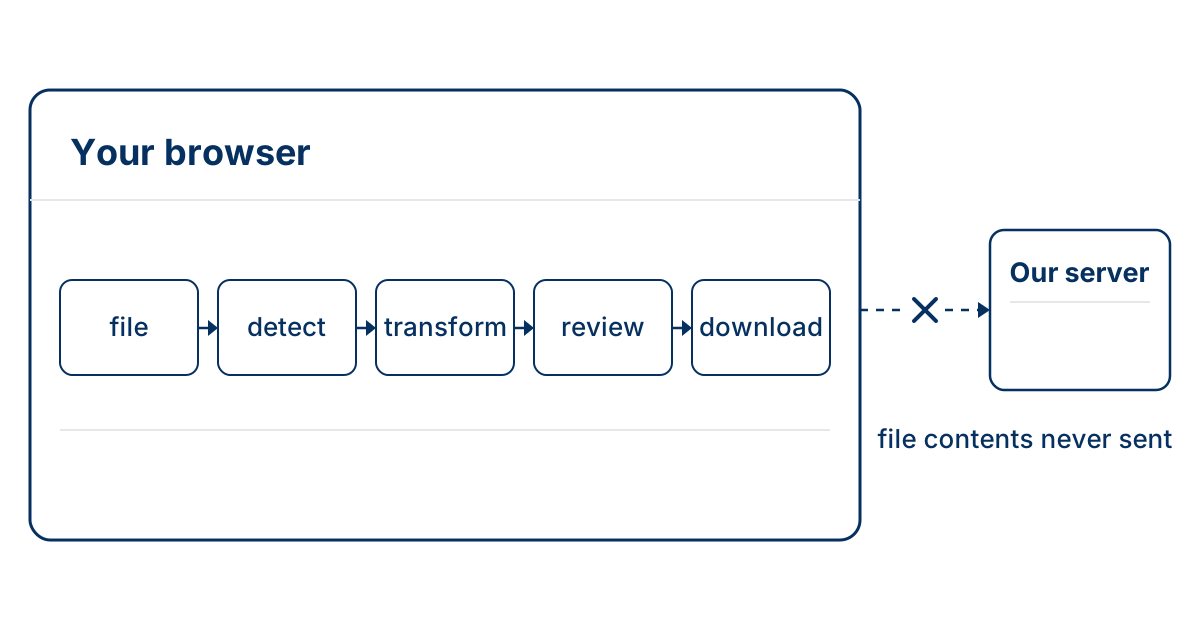
When you open a CSV in Data Alias, five things happen, all of them in the tab.
- File. The browser reads the file from disk into the tab's memory, using the same standard capability any web page uses to show an image preview before an upload. Here, nothing follows that step: the file stays in memory.
- Detect. Pattern scanners look through each cell for emails, phone numbers, IP addresses, payment card numbers, national identification numbers, and credentials such as API keys, tokens, and JWTs. The scanning code is JavaScript delivered to your browser and executed there, reading rows from memory. How well each of those patterns actually performs is published in the detection benchmark.
- Transform. Aliasing, masking, and removal are pure functions over those in-memory rows: John Smith in, PERSON_001 out. Above 10,000 rows the work moves to a Web Worker — a background thread, still inside your tab. The alias map that keeps repeated values consistent lives in the same memory.
- Review. You see what was detected, which column rules were suggested, and a before/after preview, and you correct what the automation got wrong before anything is final.
- Download. The safe copy is assembled in memory and written to your Downloads folder. The file has moved from one location on your machine to another; no step along the way sent its content over the network.
The server's role can be stated just as concretely. It delivers the page — the HTML and the JavaScript that performs the five steps above — and it handles sign-in if you choose to use it. It has no endpoint that accepts file content: no server-side preview, no "process large files in the cloud" fallback (large files are what the Web Worker is for). Nothing from the file is stored, either: rows, cell values, mappings, and filenames reach neither the server nor the browser's local storage — they exist in tab memory and are discarded on reset or refresh. Error handling follows the same rule: a parse failure is recorded as an error code and a row number, without the row itself.
Two deliberate exceptions to those defaults — no transmission, no storage of file content — exist, and both are named here so you can look for them. The first is the event beacon covered in the Network-tab section. The second is the vault.
The vault is separate from file processing, and it is off unless you create one. If you do, the alias mappings you explicitly save are kept in your own browser's storage, encrypted with a key derived from a passphrase only you hold; they are not transmitted. Encryption here describes how the mapping is stored on disk — what a compromised browser could still reach is a separate question, taken up in the last section. Keeping the mapping apart from the aliased copy is the same separation European guidance asks for; Pseudonymized data after EDPS v SRB: what changed in Europe covers what that guidance says.
Check it without developer tools: the offline test
The simplest check requires only a network toggle. Load Data Alias once while online. Then disconnect — airplane mode, or Wi-Fi off — and process a CSV, or the built-in sample data, end to end: open it, review the suggestions, download the copy. Every step completes, because no step needed a server. One caveat about formats: the XLSX, PDF, and DOCX parsers load as separate modules, so if you want to run the offline test with one of those files, process that format once while online first so the parser is already cached. The optional name-detection models work the same way, and what they cost to ship is covered in Why our in-browser name detector is 14 MB, not 11. A tool that processes files on its own server stops working the moment the connection does.
The offline session works because a service worker stores the app's own assets — page, scripts, styles — in the browser cache after the first visit. That cache holds application files only: requests under /api/ and anything other than a simple GET are excluded from it, so API responses and user data are not cached alongside them.
This is the check to reach for if you do not want to interpret network logs. Its result is binary: either the full run completes with the connection off, or it does not.
Check it with the Network tab
The second check shows the traffic itself. Open Data Alias, press F12 (⌘⌥I on a Mac) to open the browser's developer tools, and select the Network tab. Clear the log, then process a real file end to end.
What you may see: a few small requests to our own domain. That is the first-party event beacon. Open one — each carries an event name, coarse counts and labels (file format, browser family, timing in milliseconds), and a random per-browser identifier — never file content: no cell value, no column name, no filename. If your browser sends Do Not Track or Global Privacy Control, the beacon is not sent at all and no beacon appears in the log.
What you will not see is any request whose payload includes file content, a cell value, or the file's name. That absence is the claim from the first section, made visible.
The same check exists in automated form: a browser audit script in our repository drives a full upload-review-download run, records every request the page makes, and fails if any request leaves the page's origin. The proof page walks through the offline test, the Network-tab check, and that script.
What these checks show
Both checks examine the build your browser has actually loaded, which answers a fair objection: why trust the JavaScript? You do not have to take the code's word for it, because the checks observe behavior. Whatever the delivered code contains, an upload would appear in the Network log as a request, and it would break the offline run at the step that needed it. What the checks audit is the running code's behavior on the wire, and that is harder to misstate than a policy page.
The same property sets the limit. A check made today covers today's session and today's build. A future release is a new delivery of code, and this week's clean log does not vouch for next month's. If browser-local processing is a requirement for your work rather than a preference, re-run the offline test occasionally — it takes about a minute — or after the product visibly changes.
Outside the threat model
Three risks sit outside what these checks address, and outside what browser-local processing can do.
A compromised browser. The checks assume the browser itself is intact. A malicious extension with permission to read page content can read anything in the tab — the file, the preview, and the vault's mappings once you unlock them. Malware on the machine has at least the same reach. Software already inside your browser operates beneath everything this post describes — the two checks cannot reveal it, and the vault's encryption does not lock it out.
The service you share the copy with. The usual reason to produce an aliased copy is to hand it to an AI tool. What that service retains, trains on, or shows to human reviewers is governed by its terms and your organization's approvals, and by nothing in this post.
Detection quality. Local processing determines where detection runs. It says nothing about how much detection finds: unusual names, in-text addresses, and new credential formats can still pass through. What automatic PII detection misses in spreadsheets covers the specifics.
The two checks in this post answer one question — whether file content leaves the browser during processing, in the build you checked. Detection accuracy, browser integrity, and the downstream AI service are separate questions with separate controls, and a clean Network log settles none of them.